Install an SSL certificate with ACME and acme.sh
On 06/10/2026 By Timoté KleinThis tutorial installs a Sectigo or TrustSign SSL certificate ordered on HTTPCS with acme.sh, the reference ACME client on Linux. acme.sh obtains the certificate, installs it and then renews it automatically.
First choose your certificate type: the prerequisites, commands and checks adapt to it. Then enter your details: they are inserted into the commands, ready to copy. Each step shows the expected result and the common errors.
Your certificate
Your choices adapt the prerequisites, commands and checks in the rest of the tutorial.
Before you start
- Root SSH access to the server hosting the website: log in as root or become root with
sudo -i. - The
curlandcrontabcommands installed (Debian or Ubuntu:apt install curl cron). - acme.sh already installed as root in
/root/.acme.sh. Do not run the installation script again: the tutorial only adds what this certificate needs. - A certificate ordered on HTTPCS with the Use ACME option set to Yes. In your dashboard, on the SSL Certificates page, click Setup ACME: the certificate note then shows the kid, the hmac and the Server url to enter below.
- Your organization validation is complete. After ordering, confirm your email address, answer the verification call and wait for the manual organization check. The Setup ACME button only appears once these steps are done; their progress is shown in the certificate note.
- Every domain of the certificate points to this server (DNS A record, and AAAA if you have one) and port 80 is open from the Internet, even if the website redirects to HTTPS.
- The DNS zone of the domain is managed by a provider with an API supported by acme.sh, and you have an API key or token allowed to edit this zone.
- Access to your DNS zone management interface to add TXT records, and a few minutes for propagation.
- A
*.mydomain.tldwildcard covers direct subdomains (blog.mydomain.tld), not deeper levels (a.blog.mydomain.tld). The bare domainmydomain.tldis added to the commands automatically. - Use exactly the names of your HTTPCS order: the ACME server rejects any name that is not in it.
Your details
The values you enter replace the areas highlighted in yellow in the commands. A filled-in area turns blue. Clicking a yellow area takes you to the matching field.
Nothing is sent or stored: the commands are generated in your browser. All fields are optional.
Server url value from your dashboard. Type “sectigo” or “trust” to find it.
This URL belongs to an Organization (OV) certificate, but you chose Domain (DV). Use the URL shown in your dashboard.
This URL belongs to a Domain (DV) certificate, but you chose Organization (OV). Use the URL shown in your dashboard.
ACME account contact, used for expiry notices.
kid value from the dashboard: the short identifier.
hmac value from the dashboard: the long key. Do not share it.
Without http:// or path, for example mydomain.tld.
One domain per line, as they appear in your order.
Enter the domain without *.: the commands request both mydomain.tld and *.mydomain.tld.
Folder served for this domain: root directive in Nginx, DocumentRoot in Apache.
Where to create these credentials?
In Cloudflare, My Profile › API Tokens › Create Token, “Edit zone DNS” template restricted to this domain. The Zone ID is on the Overview page of the domain.
Where to create these credentials?
Create the three keys at once on the page of your region: eu.api.ovh.com/createToken ca.api.ovh.com/createToken api.us.ovhcloud.com/createToken eu.api.kimsufi.com/createToken ca.api.kimsufi.com/createToken eu.api.soyoustart.com/createToken ca.api.soyoustart.com/createToken
Option 1, every zone of the account (prefilled by the link):
- GET, POST, PUT, DELETE
/domain/zone/*
Option 2, this zone only: declare both paths.
- GET
/domain/zone/mydomain.tld - GET, POST, PUT, DELETE
/domain/zone/mydomain.tld/*
The page then shows the Application Key, the Application Secret and the Consumer Key: enter them in the matching fields.
Where to create these credentials?
In Gandi, User settings › Personal Access Tokens, with the right to manage the technical configuration of domains.
Where to create these credentials?
In the Infomaniak Manager, Developer › API tokens: create a token with the domain scope.
Where to create these credentials?
Create a key on developer.hosting.ionos.com/keys: IONOS shows a public prefix and a secret, to enter in two separate fields.
Where to create these credentials?
In the Scaleway console, IAM › API keys: use the Secret Key of a key whose policy includes this permission set:
-
DomainsDNSFullAccess
Where to create these credentials?
In AWS IAM, create an access key for a user allowed to perform these actions:
-
route53:ListHostedZones -
route53:ChangeResourceRecordSets -
route53:GetChange
More than 150 providers are supported: see the acme.sh documentation.
Command that reloads your software so it reads the new certificate.
Name given in the acme.sh documentation for your provider, for example dns_gd.
Install acme.sh
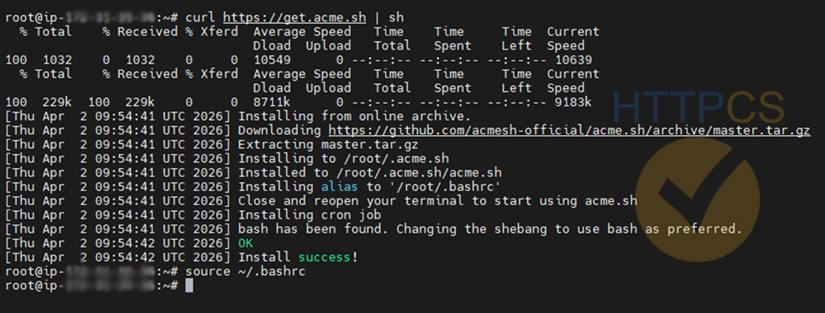
The script installs acme.sh in /root/.acme.sh, adds the acme.sh alias and a renewal cron job. The last command prints the installed version.
curl https://get.acme.sh | sh -s email=admin@mydomain.tld
source ~/.bashrc
acme.sh --versionSee an example result
If something goes wrong
-
acme.sh: command not foundThe alias is not loaded yet: runsource ~/.bashrcor open a new session. Also check that the installation was done by the same user (root). -
Pre-check failedThecrontabcommand is missing. Install it (apt install cron) and run the installation again. -
curl: (6) Could not resolve hostor timeout The server has no outbound Internet access. Check its DNS resolution and outbound firewall: github.com must be reachable.
Review the existing installation
Update acme.sh and list the certificates it already manages. The rest of the tutorial does not change them.
acme.sh --upgrade
acme.sh --listEach HTTPCS order has its own ACME account, while acme.sh keeps only one account per server URL. Check whether an account already exists for the URL of this certificate:
ls /root/.acme.sh/ca/SERVER_URL/account.keyNo such file or directory: no account, keep the shared configuration. The account.key file is listed: another certificate already uses this URL, choose the separate configuration, otherwise acme.sh would reuse the old account and the ACME server would reject this domain.
List the DNS API credentials already saved, without showing their values:
grep -o '^SAVED_[A-Za-z_]*' /root/.acme.sh/account.confVariables of another provider (for example SAVED_OVH_AK while this domain is at IONOS) are not a problem: each provider has its own variables. If the variables of your provider are listed for another account than the one of this domain, choose the separate configuration: exporting new values would replace the old ones and renewals of the other certificates would fail.
If something goes wrong
-
acme.sh: command not foundacme.sh is installed for another user or in another folder. Find it withls -d /root/.acme.sh /home/*/.acme.shand work as that same user. -
acme.sh --listdoes not show the known certificates They belong to another configuration. The cron line tells which one:crontab -l | grep acme.sh(--config-homeoption).
Register the ACME account
This command links acme.sh to your HTTPCS ACME account with the EAB (External Account Binding) credentials. Run it only once per server.
This step is still required with an existing acme.sh: the EAB credentials belong to this HTTPCS order.
Separate configuration: --config-home keeps this certificate in its own folder (ACME account, DNS credentials, renewal settings). Keep this option in every following command, it is already added.
mkdir -p /root/.acme.sh-httpcs-mydomain.tld && touch /root/.acme.sh-httpcs-mydomain.tld/account.conf
acme.sh --register-account \
  --config-home /root/.acme.sh-httpcs-mydomain.tld \
  --server SERVER_URL \
  --eab-kid YOUR_KID \
  --eab-hmac-key YOUR_HMAC \
-m admin@mydomain.tldExpected result: Registered then ACCOUNT_THUMBPRINT=….
If something goes wrong
-
Already registeredinstead ofRegisteredAn account already exists for this URL in this configuration: the new EAB credentials are not used and the certificate request will be rejected. Choose Already installed then Separate configuration in the selector and register again. If you are just running the registration again for this same certificate, the message is expected. -
externalAccountRequiredThe server did not receive the EAB credentials: a line was broken. Each\must be the last character of its line, with no space after it. Copy the block again with the Copy button. -
unauthorizedormalformederror mentioning EAB kid and hmac swapped, truncated or taken from another certificate. Copy them again from the dashboard, with no leading or trailing space. - Rejected although kid and hmac are correct The server URL does not match the certificate: DV and OV, Sectigo and TrustSign each have their own URL. Use exactly the one from the dashboard.
Test the website folder
To prove control of the domain, acme.sh places a file in the .well-known/acme-challenge folder of the website. This test reproduces the operation before the real request. For a multi-domain certificate, repeat the curl line with each domain.
mkdir -p /var/www/html/.well-known/acme-challenge
echo ok > /var/www/html/.well-known/acme-challenge/httpcs-test
curl -i http://mydomain.tld/.well-known/acme-challenge/httpcs-test
rm /var/www/html/.well-known/acme-challenge/httpcs-testExpected result: HTTP/1.1 200 OK, then ok at the end of the response.
If something goes wrong
-
404 Not Foundresponse This folder is not the one served for this domain. Find the right one withgrep -R "root" /etc/nginx/sites-enabled/(Nginx) orgrep -R "DocumentRoot" /etc/apache2/sites-enabled/(Apache). -
Connection refusedor timeout Port 80 is closed (server or hosting firewall, for exampleufw allow 80/tcp) or the domain does not point to this server: comparedig +short A mydomain.tldwith the server IP. -
The test passes but validation fails
The domain may have an AAAA record (
dig +short AAAA mydomain.tld) while the website does not answer over IPv6. The certificate authority can connect over IPv6: fix or remove this record. -
Redirect to another domain
A redirect from HTTP to HTTPS on the same domain is fine. A redirect to another domain makes validation fail: exclude the
/.well-known/acme-challenge/path from that redirect.
Provide DNS API access
acme.sh creates the validation TXT record itself through your DNS provider API. Export the credentials in the session: acme.sh saves them in /root/.acme.sh/account.conf during the first request and reuses them at every renewal. If possible, restrict the token to editing this zone.
acme.sh already installed: if these variables are already listed in the “Review” step for the same account, no need to export them again, acme.sh reads them back. Credentials saved for another provider stay untouched.
export CF_Token="TO_FILL_IN"
export CF_Zone_ID="TO_FILL_IN"export OVH_END_POINT="TO_FILL_IN"
export OVH_AK="TO_FILL_IN"
export OVH_AS="TO_FILL_IN"
export OVH_CK="TO_FILL_IN"export GANDI_LIVEDNS_TOKEN="TO_FILL_IN"export INFOMANIAK_API_TOKEN="TO_FILL_IN"export IONOS_PREFIX="TO_FILL_IN"
export IONOS_SECRET="TO_FILL_IN"export SCALEWAY_API_TOKEN="TO_FILL_IN"export AWS_ACCESS_KEY_ID="TO_FILL_IN"
export AWS_SECRET_ACCESS_KEY="TO_FILL_IN"Export the variables listed for your provider in the acme.sh documentation, as export NAME="value".
Check that the zone is managed by this provider: the name servers shown must belong to it.
dig +short NS mydomain.tldIf something goes wrong
-
Error add txt for domainThe API rejected the record: wrong credentials or token without write access to the zone. For OVHcloud, create the token on eu.api.ovh.com/createToken with GET, POST, PUT and DELETE rights on/domain/zone/*. -
invalid domainor zone not found acme.sh cannot find the zone among the domains of the account linked to these credentials. Ifdig +short NSdoes show the chosen provider, the zone belongs to another account at this provider (OVHcloud: another customer ID) or the token is not allowed to read it. Create the token again while logged in to the account that manages the zone. Run the command again with--debug 2to see the API response:This service does not existmeans another account,This call has not been granteda missing right. At OVHcloud, a right on/domain/zone/mydomain.tld/*does not cover/domain/zone/mydomain.tld: add this path in GET as well.
Get the certificate
acme.sh requests the certificate from the HTTPCS ACME server, performs the chosen validation and downloads the certificate to /root/.acme.sh/.
Keep the single quotes around '*.mydomain.tld': without them, the shell replaces * with the files of the current folder.
acme.sh --issue \
  --config-home /root/.acme.sh-httpcs-mydomain.tld \
  --server SERVER_URL \
  -d mydomain.tld \
-w /var/www/htmlacme.sh --issue \
--config-home /root/.acme.sh-httpcs-mydomain.tld \
--server SERVER_URL \
-d mydomain.tld \
--dns dns_xxxacme.sh --issue \
--config-home /root/.acme.sh-httpcs-mydomain.tld \
--server SERVER_URL \
-d mydomain.tld \
--dns \
--yes-I-know-dns-manual-mode-enough-go-ahead-pleaseExpected result: Cert success., followed by the certificate and key paths.
Expected result: acme.sh stops on purpose and prints, for each name, a Domain: '_acme-challenge.mydomain.tld' line and a TXT value: '…' line. Keep these values for the next step.
Organization certificate: the domain was already checked during the organization validation. acme.sh may then print Already verified, skip and go straight to issuance. This is expected.
If something goes wrong
-
rejectedIdentifier,unauthorizedor order rejected A requested name is not part of your HTTPCS order. Use exactly the ordered domains; for a wildcard, the bare domain and*.domain. -
externalAccountRequiredat this step The URL given to--serverdiffers from the registration one: acme.sh tries to create a new account without EAB. Use the same URL in both commands. -
Validation rejected for
*.mydomain.tldA wildcard cannot be validated over HTTP. Choose a DNS validation in the selector.
-
Verify errorwithInvalid responseand a 404 code The folder given to-wis not the website folder. Run the test of the previous step again. -
TimeoutorConnection refusedPort 80 cannot be reached from the Internet or the domain points elsewhere. Run the test of the previous step again.
-
invalid domainthenError adding TXT recordacme.sh cannot find the zone among the domains of the account linked to these credentials. Ifdig +short NSdoes show the chosen provider, the zone belongs to another account at this provider (OVHcloud: another customer ID) or the token is not allowed to read it. Create the token again while logged in to the account that manages the zone. Run the command again with--debug 2to see the API response:This service does not existmeans another account,This call has not been granteda missing right. At OVHcloud, a right on/domain/zone/mydomain.tld/*does not cover/domain/zone/mydomain.tld: add this path in GET as well. -
It seems that your ovh key is changed, let’s clear consumer key first.Normal message the first time these OVHcloud keys are used: acme.sh forgets the previously saved Consumer Key and uses the one you exported. -
Verification fails right after the TXT record is added
DNS propagation is slower than expected. Run the command again with
--dnssleep 300to wait five minutes before verification.
Add the TXT records
In your DNS provider interface, create one TXT record for each value printed by acme.sh, on the _acme-challenge name. Most interfaces append the domain automatically: then enter only _acme-challenge, not the full name.
Wildcard: acme.sh prints two values for the same _acme-challenge.mydomain.tld name, one for the bare domain and one for *.mydomain.tld. Create two separate TXT records; do not replace the first one with the second.
Wait for propagation, then check that every value is visible:
dig +short TXT _acme-challenge.mydomain.tld @1.1.1.1Once every value appears, complete the request:
acme.sh --renew \
  --config-home /root/.acme.sh-httpcs-mydomain.tld \
  -d mydomain.tld \
--yes-I-know-dns-manual-mode-enough-go-ahead-pleaseManual DNS mode does not renew by itself. ACME certificates are short-lived, a few months: you will have to repeat these steps before each expiry (notAfter date of the certificate). To automate, switch to automatic DNS as soon as possible.
If something goes wrong
-
Verify errororInvalid statusA value is missing or not propagated yet. Thedigcommand must print every value. Wait for the zone TTL, then run--renewagain. -
digreturns nothing The name is probably doubled (_acme-challenge.mydomain.tld.mydomain.tld). Fix the record by entering only_acme-challenge. -
The values changed between two attempts
Each
--issuecommand generates new values. Update the TXT records with the latest values printed.
Install the certificate
Copy the key and the full certificate (fullchain) to /etc/ssl. acme.sh remembers these paths and the reload command, and reuses them at every renewal. Never point the web server directly to the files in /root/.acme.sh/.
acme.sh --install-cert -d mydomain.tld \
  --config-home /root/.acme.sh-httpcs-mydomain.tld \
  --key-file /etc/ssl/private/mydomain.tld-acme.key \
  --fullchain-file /etc/ssl/certs/mydomain.tld-acme.crt \
--reloadcmd "RELOAD_COMMAND"Check that both files exist:
ls -l /etc/ssl/private/mydomain.tld-acme.key /etc/ssl/certs/mydomain.tld-acme.crtCheck that acme.sh remembered this installation. Without these settings, a renewal would not copy the files again nor reload the web server.
grep -o '^Le_\(RealKeyPath\|RealFullChainPath\|ReloadCmd\)' /root/.acme.sh/mydomain.tld_ecc/mydomain.tld.confExpected result: Le_RealKeyPath, Le_RealFullChainPath and Le_ReloadCmd.
See an example result
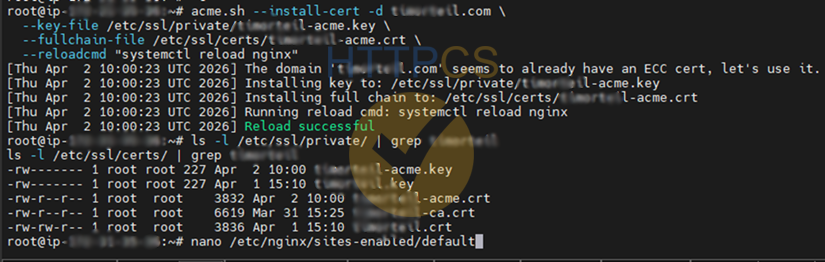
If something goes wrong
-
One of the three names is missing
Run the
--install-certcommand above again: acme.sh saves the paths and the reload command at that point. -
No such file or directoryon the.conffile The certificate was issued with an RSA key: its folder has no_eccsuffix. Remove_eccfrom the path. -
is not an issued domain, skipThe name given to-dmust be the first domain of the issuance step:Main_Domaincolumn ofacme.sh --list. -
Reload errorThe reload command failed, often because of an invalid configuration. Fix the configuration in the next step, then run this command again. -
Permission deniedRun the command as root (sudo -i).
Configure the web server
Open the website file in /etc/nginx/sites-available/ (or /etc/nginx/conf.d/) and update its HTTPS server block. Remove the old ssl_certificate lines of the website, then test and reload Nginx.
server {
    listen 443 ssl;
    listen [::]:443 ssl;
    server_name mydomain.tld;

    ssl_certificate     /etc/ssl/certs/mydomain.tld-acme.crt;
    ssl_certificate_key /etc/ssl/private/mydomain.tld-acme.key;

    # rest of your existing configuration
}nginx -t && systemctl reload nginxOpen the website file in /etc/apache2/sites-available/ and update its port 443 VirtualHost block. Enable the SSL module, test, then reload Apache. On Red Hat, Rocky or Alma, the service is called httpd.
<VirtualHost *:443>
    ServerName mydomain.tld
    ServerAlias *.mydomain.tld

    SSLEngine on
    SSLCertificateFile    /etc/ssl/certs/mydomain.tld-acme.crt
    SSLCertificateKeyFile /etc/ssl/private/mydomain.tld-acme.key

    # rest of your existing configuration
</VirtualHost>a2enmod ssl
apachectl configtest && systemctl reload apache2Give these two files to your software, the key then the full certificate, and reload it:
/etc/ssl/private/mydomain.tld-acme.key
/etc/ssl/certs/mydomain.tld-acme.crtIf something goes wrong
- Port 443 does not answer Open port 443 in the server and hosting firewalls.
-
cannot load certificatewhen runningnginx -tThe file path is wrong. Compare it with the output of thels -lcommand of the previous step. -
The old certificate is still served
Another block answers for this domain on port 443. List the active declarations with
nginx -T | grep -nE "server_name|ssl_certificate".
-
Invalid command 'SSLEngine'The SSL module is not enabled: runa2enmod ssl. -
The old certificate is still served
Another virtual host answers on port 443. List them with
apachectl -S.
Check the certificate
Query the website the way a browser does:
openssl s_client -connect mydomain.tld:443 -servername mydomain.tld </dev/null 2>/dev/null \
| openssl x509 -noout -subject -issuer -dates -ext subjectAltNameExpected result: issuer mentions Sectigo or TrustSign, notAfter gives the expiry date and the X509v3 Subject Alternative Name line lists all your domains.
Wildcard: the list must contain DNS:*.mydomain.tld and DNS:mydomain.tld. To test a subdomain, replace the -servername value with this subdomain.
Then open the website in a browser and click the padlock: the certificate must be valid and issued by Sectigo or TrustSign.
See an example result
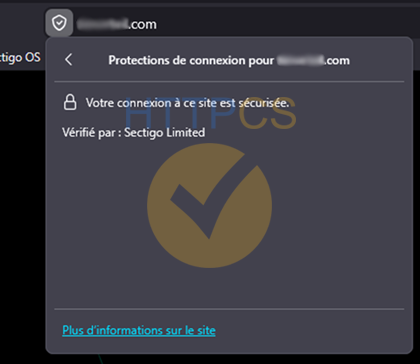
If something goes wrong
-
unable to get local issuer certificateor incomplete chain The server sends the certificate alone instead of the full certificate. Use the file installed with--fullchain-file. -
Name error, for example
NET::ERR_CERT_COMMON_NAME_INVALIDThe visited name is not in the certificate. A wildcard only covers one subdomain level. -
The browser still shows the old certificate
Reload without cache or test in a private window. If
opensslshows the new certificate, the server is correct.
Check automatic renewal
acme.sh checks its certificates every day through cron. It renews this one before it expires, installs it again and runs the reload command, with no action from you.
Separate configuration: the existing cron job does not see this folder, and acme.sh --install-cronjob does not add a second line. Add it yourself:
(crontab -l; echo '0 4 * * * "/root/.acme.sh"/acme.sh --cron --home "/root/.acme.sh" --config-home "/root/.acme.sh-httpcs-mydomain.tld" > /dev/null') | crontab -Manual DNS: no automatic renewal. Note the date in the Renew column and repeat the DNS steps before that date, or switch to automatic DNS.
crontab -l | grep acme.sh
acme.sh --list --config-home /root/.acme.sh-httpcs-mydomain.tldExpected result: a cron line containing acme.sh --cron, and your domain in acme.sh --list with the next renewal date (Renew column).
Separate configuration: two acme.sh --cron lines, one of them with --config-home.
Check the duration of the installed certificate:
openssl x509 -noout -dates -in /etc/ssl/certs/mydomain.tld-acme.crtExpected result: notAfter gives the expiry date. The date in the Renew column of acme.sh --list must come earlier: acme.sh renews well before expiry.
See an example result
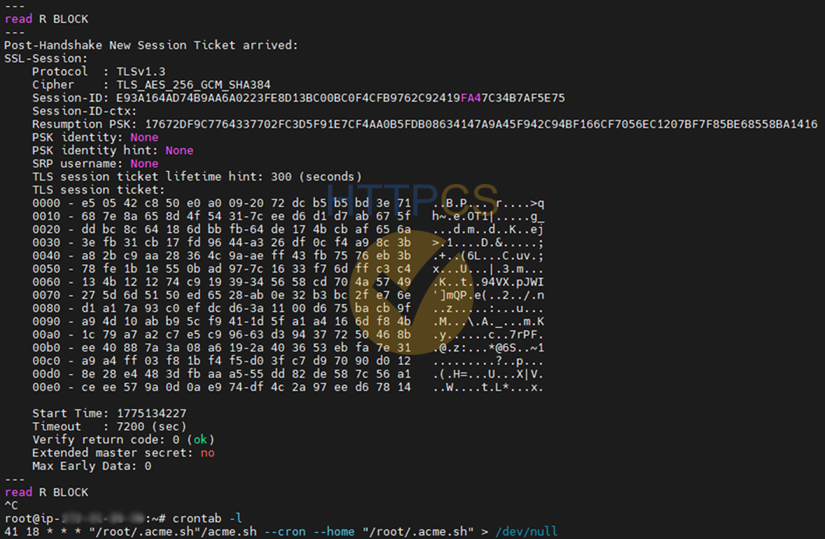
If something goes wrong
-
No cron line
Create the job again with
acme.sh --install-cronjob. -
Renewal fails although the first issuance succeeded
Run the check by hand with
acme.sh --cron --debugto read the error. Common causes: revoked DNS API token, port 80 closed since, or expired HTTPCS order (the ACME account is only valid for the duration of the order).
The installation is complete when the website serves the new certificate, the browser accepts it and acme.sh --list shows a renewal date.